

At a glance
How it works
1
SolAds sends the click
A visitor clicks your ad. SolAds opens your ClickFlare campaign URL and fills in its macros: the click ID in
trackingid, the click price in cost, plus the publisher, sub-partner, ad copy, campaign and site name.2
ClickFlare stores the SolAds click ID
ClickFlare saves the value of
trackingid as the visit’s External ID, records the cost, and redirects the visitor to your lander or offer.3
The conversion reaches ClickFlare
Your affiliate network or store posts the conversion back to ClickFlare, matched on the ClickFlare click ID.
4
ClickFlare posts it back to SolAds
ClickFlare fires the SolAds postback, replacing
{external_id} with the stored SolAds click ID and {payout} with the revenue. SolAds matches it to the original click and shows it in your SolAds stats.The mirror to keep straight: in the campaign URL you write ClickFlare’s parameter (
trackingid) and SolAds’ macro ($$trackingid$$). The template does this for you. In the postback URL you write SolAds’ parameter (tid) and ClickFlare’s token ({external_id}).Before you start
- Set up your own tracking domain. Run the campaign and the postback on your own custom domain. Shared domains get flagged by networks and blocked by browsers. See Custom Domains.
- Have an offer ready in ClickFlare, and its affiliate network set up to post conversions back to ClickFlare. See Creating an Offer and Adding an Affiliate Network.
- Have access to your SolAds advertiser account. You activate tracking there and copy your
nvalue from its tracking settings. - Decide which conversions SolAds should receive. Dating funnels often have a free sign-up (SOI or DOI) and a paid membership. SolAds can count each as a separate event. Decide now whether to send one or both. See Tracking several events.
Step 1 – Create the campaign and the SolAds Media traffic source
- Go to Campaigns and click New.
- In Traffic Source, open the dropdown and click + New Traffic Source.
- Type
soladsin the search box and select the SolAds Media template. - Enter a Name, for example
SolAds Media. - Set Cost currency to EUR. SolAds passes the click price in EUR. See Cost.
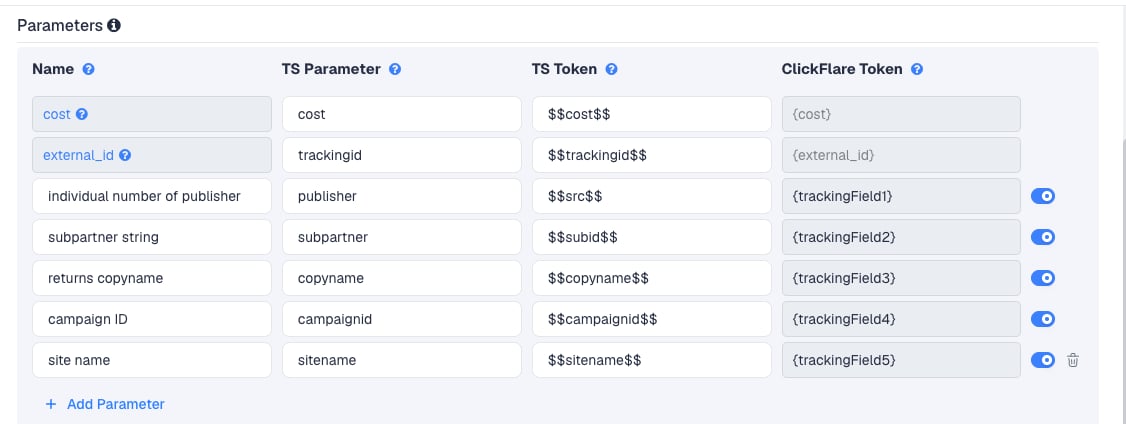
publisher and subpartner are the ones you will use most: they show which publishers and sub-sources convert. You can then exclude the weak ones in SolAds, at account level under Account Details → Traffic, or per campaign under Campaign → Details → Traffic.
site name lets you optimize below the publisher level, down to the individual site.
Add more SolAds macros
The template passes seven of SolAds’ macros. SolAds documents two more that you can add:
To add one, click Add Parameter, enter the name and parameter, and enter the SolAds macro as the TS Token. ClickFlare assigns the next free tracking field.
Step 2 – Set up the postback
The postback is what sends conversions to SolAds. It lives on the traffic source, so every campaign that uses this SolAds Media traffic source sends conversions the same way.SolAds says you don’t need a postback when you use a tracker: it already passes click and cost data on every click. Set it up anyway if you want conversions and their value in your SolAds dashboard, next to the spend.
What the template gives you
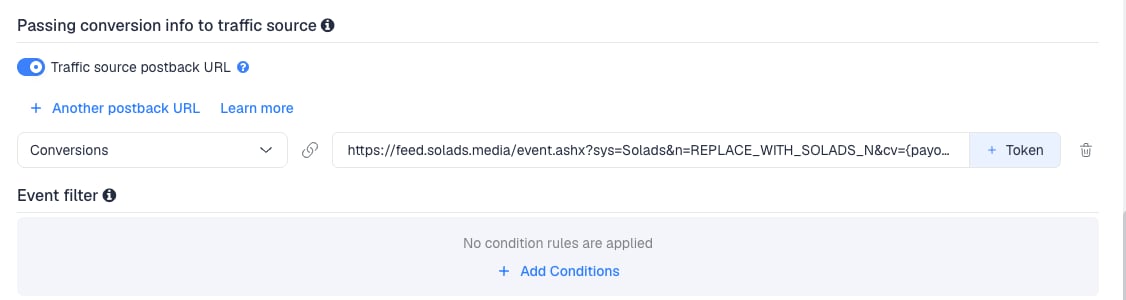
- Back in the New Traffic Source form, scroll to Passing conversion info to traffic source.
- Turn on Traffic source postback URL. The template’s postback appears:
Get your n value from SolAds
- In SolAds, click Account Details in the top menu, then Tracking in the left sidebar.
- Activate tracking by choosing an option in the Tracking Support dropdown:
- Event Counting only counts events (leads, sign-ups).
- Conversion Tracking counts events and records their value.
- Click Save Changes.
- In the Tracking panel further down, click New. Name the tracking event, choose an event type and click Save.
- The Tracking tag panel shows the event’s postback URL. Copy the number after
n=.
n value carries over. Keep ClickFlare’s {payout} and {external_id} in the template.
Fill it in on the traffic source in ClickFlare
- In the postback field, replace
REPLACE_WITH_SOLADS_Nwith yournvalue, exactly as SolAds shows it. - In the dropdown on the left, choose the ClickFlare event that should fire the postback. Keep Conversions to send every conversion. If your final action is a custom conversion (for example
purchase), choose that instead. - Click Save. You are back in the campaign editor with the SolAds Media traffic source selected.
{cf_click_id} in tid. That is ClickFlare’s own click ID, and SolAds has never seen it. SolAds needs its own ID back, which ClickFlare stores as {external_id}.
To learn what each postback token does, see How to Configure a Traffic Source S2S Postback URL.
Step 3 – Finish the campaign and copy its URL
- Name the campaign.
- Set the Cost Model. Use Not Tracked for native CPC campaigns, so ClickFlare uses the cost SolAds passes. For banner CPM campaigns, see Cost.
- Choose Redirect or Direct tracking. Redirect is the usual choice.
- Click Next and, on Destination, add your lander (optional) and your offer.
- Save, open Tracking, select your own tracking domain and copy the campaign URL.
trackingid=$$trackingid$$ and cost=$$cost$$.
If you use a lander, its call-to-action must link to the ClickFlare click URL, not to the offer directly. Otherwise the visit reaches the offer without a ClickFlare click ID, and the conversion cannot be traced back to SolAds.
See Creating a Campaign in ClickFlare.
Step 4 – Create the campaign in SolAds
- In SolAds, create a native ads campaign or a banner campaign.
- Set targeting, bids and creatives as usual.
- Paste the ClickFlare campaign URL as the campaign’s destination URL.
- Save the campaign.
$$...$$ macro when the ad is clicked.
Step 5 – Test the integration
- Click one of your live SolAds ads, or ask your SolAds account manager for a test click.
- In ClickFlare, open the campaign’s report. The visit should show a SolAds click ID as its External ID, a cost (on CPC campaigns), and values in the publisher and copy name columns.
- Complete the offer the way a real visitor would.
- In ClickFlare, go to Logs → Postback Status and filter by the campaign. A successful request to
feed.solads.mediaconfirms ClickFlare sent the postback. - In SolAds, check that the conversion appears under the tracking event you created.
Tracking several events
SolAds can count more than one event per account. For example, one tracking event to count leads and a second one for the number and value of sales. Each event has its own postback URL, with its ownn value, in the Tracking tag panel.
- In ClickFlare, create a custom conversion for each step, for example
signupandpurchase. - In SolAds, create one tracking event per step under Account Details → Tracking, and note each event’s
nvalue. - On the SolAds Media traffic source, click + Another postback URL once per extra event.
- Paste the template’s postback into each, with that event’s
nvalue, and map it to its ClickFlare event:signupto the lead event’sn,purchaseto the sale event’sn. - Test each event.
Event Counting or Conversion Tracking?
Event Counting or Conversion Tracking?
- Event Counting only counts. Its postback has no
cvparameter, so you can delete&cv={payout}from the template’s postback for that event. Use it for free sign-ups. - Conversion Tracking counts and records value. Use it for paid memberships and sales, with
cv={payout}.
Sending only one event
Sending only one event
If SolAds should only see your final sale, keep a single postback and map it to that event. Earlier steps still show in ClickFlare. They just don’t reach SolAds.To send a postback only for some conversions, for example only those above a certain payout, use Event filter under the postback to add conditions.
Cost
The template passes cost per click. Thecost row sends SolAds’ $$cost$$ macro, which is your click price as set in your SolAds campaign. ClickFlare records it as the visit’s cost.
- Native CPC campaigns: set the campaign’s Cost Model to Not Tracked, so ClickFlare uses the cost passed in the URL.
- Set the traffic source’s Cost currency to EUR. SolAds sends the click price in EUR. With USD selected, ClickFlare reads a 0.40 EUR click as 0.40 USD. See Multicurrency in ClickFlare.
$$cost$$ only works for native CPC campaigns. On banner CPM campaigns, SolAds tracks impressions and spend internally and cannot pass a per-click cost. The cost parameter arrives empty.- Set the Cost Model to CPC with your effective click price: your SolAds spend divided by clicks, from your SolAds stats. Update it as it changes.
- Leave cost at zero and correct it with a manual cost upload from your SolAds spend.
Delayed revenue
If a dating offer pays later (a rebill, or a sale confirmed days after the sign-up), the revenue reaches ClickFlare after the click. To pass that revenue to SolAds once it arrives, see Sending Delayed Revenue to Traffic Sources.Troubleshooting
Conversions show in ClickFlare but not in SolAds
Conversions show in ClickFlare but not in SolAds
- Traffic source postback URL is off on the SolAds Media traffic source.
- Disable sending postbacks to traffic source is on in the campaign.
- The postback still contains
REPLACE_WITH_SOLADS_Ninstead of yournvalue. - You pasted SolAds’ own URL and it still contains
{trackingid}instead of{external_id}. - Tracking is not activated in SolAds: Tracking Support must be set and saved under Account Details → Tracking.
- The postback is mapped to a different event than the one the conversion logged. Check Logs → Event Logs to see which event was recorded.
- Check Logs → Postback Status: a failed request shows the status code SolAds returned.
SolAds shows conversions with no value
SolAds shows conversions with no value
- Tracking Support is set to Event Counting, which records no value. Switch it to Conversion Tracking and check the
nvalue is still the one SolAds shows. cvwas removed from the postback, or still contains{conversionvalue}. It must becv={payout}.
Cost is zero or wrong
Cost is zero or wrong
- The campaign is a banner CPM campaign. SolAds doesn’t pass cost for those. See Cost.
- The campaign’s Cost Model is not Not Tracked, so ClickFlare ignores the passed cost.
- Costs are off by the EUR to USD exchange rate: the traffic source’s Cost currency is USD, but SolAds sends EUR.
Publisher or copy name columns are empty
Publisher or copy name columns are empty
The macros were not replaced, usually because the URL was edited or pasted where SolAds doesn’t process macros. Paste the campaign URL from ClickFlare unchanged.
$$subid$$ and $$sitename$$ are only filled when SolAds has a value. See Traffic Source Tokens Arriving Empty.FREQUENTLY ASKED QUESTIONS
Q1: Do I have to set up the postback?A1: No. ClickFlare tracks your conversions and ROI without it, because SolAds passes the click ID and cost on every click. Set it up if you want conversions and their value in your SolAds stats too.
Q2: Why is itA2: They are two halves of the same value. ClickFlare reads SolAds’ click ID from its owntrackingidin the campaign URL andtidin the postback?
trackingid parameter. SolAds expects it back in its own tid parameter. Both names are fixed. Change neither.
Q3: Should I use Redirect or Direct tracking with SolAds?A3: Redirect is the usual choice and works with both native and banner campaigns. Use Direct only if SolAds must see your lander’s domain as the destination. See Direct Campaign Tracking.
Q4: Which numbers should I trust when ClickFlare and SolAds disagree on spend?A4: SolAds bills on the spend shown in its interface. Use that as the reference and correct ClickFlare with a manual cost upload when they differ.
Related
Traffic source postbacks
Every token you can use in a postback.
Custom conversions
Split sign-ups and sales into separate events.
Cost models
How CPC, CPA and RevShare costs are calculated.
Multicurrency
How ClickFlare converts EUR costs and payouts.