

At a glance
How it works
1
Admixer serves the ad and sends the click
A visitor clicks your creative. Admixer opens your ClickFlare campaign URL from the creative’s Main landing page URL and fills in its macros: the auction ID in
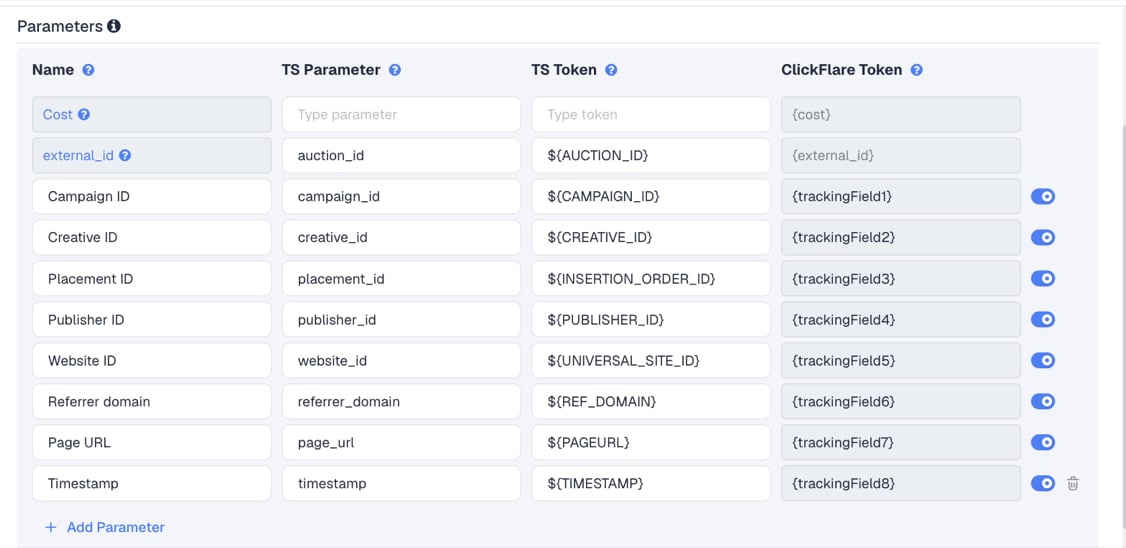
auction_id, plus the campaign, creative, insertion order, publisher, website, referrer domain, page URL and timestamp.2
ClickFlare stores the auction ID
ClickFlare saves the value of
auction_id as the visit’s External ID and redirects the visitor to your lander or offer.3
The conversion reaches ClickFlare
Your affiliate network or store posts the conversion back to ClickFlare, matched on the ClickFlare click ID. You see it in ClickFlare with the publisher and website that sent the click.
4
Admixer learns about the conversion
ClickFlare sends the template’s postback to Admixer, with the auction ID in
clickid and the payout in sum. See Step 2.The mirror to keep straight: in the campaign URL you write ClickFlare’s parameter (
auction_id) and Admixer’s macro (${AUCTION_ID}). In the postback you write Admixer’s click ID parameter (clickid) and ClickFlare’s token ({external_id}).Before you start
- Set up your own tracking domain. Run the campaign on your own custom domain. Shared domains get flagged by networks and blocked by browsers. See Custom Domains.
- Have an offer ready in ClickFlare, and its affiliate network set up to post conversions back to ClickFlare. See Creating an Offer and Adding an Affiliate Network.
- Have an Admixer advertiser account with an advertiser created under Advertisers. Admixer links every creative and campaign to an advertiser.
- Know your Admixer conversion type. The template postback sends
type=1. If you track several conversion types, ask your Admixer account manager which value each one uses. See Step 2.
Step 1 – Create the campaign and the Admixer traffic source
- Go to Campaigns and click New.
- In Traffic Source, open the dropdown and click + New Traffic Source.
- Type
admixerin the search box and select the Admixer template. - Enter a Name, for example
Admixer. - Leave Cost currency on USD unless your Admixer account is billed in another currency.
The tracking rows
All eight tracking rows, from Campaign ID to Timestamp, are switched on, so each one is added to the campaign URL. Keep Publisher ID, Website ID and Referrer domain on. They tell you which publishers and sites convert, so you can exclude the rest from your Admixer profile’s inventory. Timestamp and Page URL are optional. Page URL can be long, and timestamp is rarely useful for grouping. Switch off any row you don’t need. To pass more Admixer data, click Add Parameter, give it a name and parameter, and enter the Admixer macro as the TS Token. ClickFlare assigns the next free tracking field. Check with Admixer which macros your account supports before adding them.Step 2 – Set up conversion tracking
The template includes a postback for Admixer. In the New Traffic Source form, scroll to Passing conversion info to traffic source. Traffic source postback URL is switched on and holds this URL: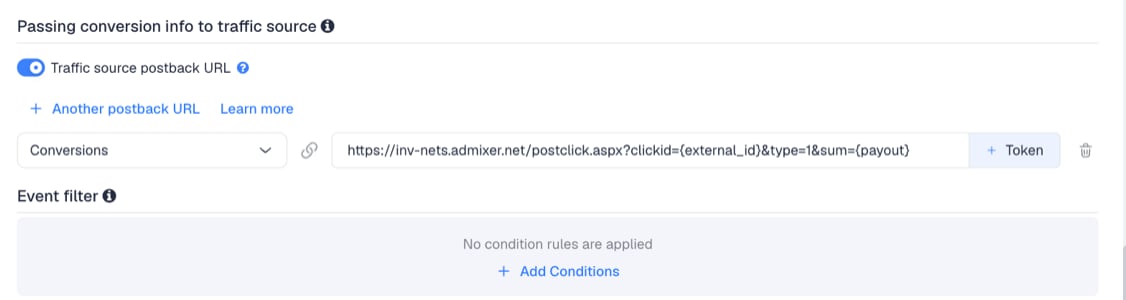
clickid carries the auction ID, type is Admixer’s conversion type and sum carries the payout. The postback needs no edits.
type=1 is Admixer’s conversion type. If you track several conversion types, use the value your Admixer account manager gives you for each one, with one postback per type. See Tracking several events.
- In the dropdown on the left, choose the ClickFlare event that should fire the postback. Keep Conversions to send every conversion.
- Click Save.
Step 3 – Finish the campaign and copy its URL
- Name the campaign.
- Set the Cost Model to CPC and enter your effective cost per click. See Cost.
- Choose Redirect or Direct tracking. Redirect is the usual choice for Admixer.
- Click Next and, on Destination, add your lander (optional) and your offer.
- Save, open Tracking, select your own tracking domain and copy the campaign URL.
auction_id=${AUCTION_ID} and one parameter for each switched-on row, for example publisher_id=${PUBLISHER_ID}.
If you use a lander, its call-to-action must link to the ClickFlare click URL, not to the offer directly. Otherwise the visit reaches the offer without a ClickFlare click ID, and the conversion cannot be traced back to Admixer.
See Creating a Campaign in ClickFlare.
Step 4 – Create the campaign in Admixer
- In Admixer, go to Creatives, select Creative library and click Add a creative.
- Choose the creative type, enter a name and select your advertiser.
- Paste the ClickFlare campaign URL into the Main landing page URL field.
- Enter the advertiser’s domain, upload the creative and click SAVE.
- Go to Campaigns, select Campaigns and click Add a campaign. Enter a name, select the advertiser, set the daily and campaign budgets and click SAVE.
- Click Add a profile. Name it, set a budget limit, pick inventory with Inventory selector, set targeting and enter the maximal profile CPM. Click SAVE.
- In the creative library, select your creative, click Link profile, choose the profile and save.
- In the profile, open Linked creatives and click ACTIVATE on the creative.
${...} macro when the ad is clicked.
Step 5 – Test the integration
- Launch the profile with a small budget.
- In ClickFlare, open the campaign’s report and check External ID. It should show a different auction ID on each visit. A raw
${AUCTION_ID}means Admixer didn’t replace the macro. - Check the publisher, website and referrer domain columns. Empty columns mean the row is switched off, or Admixer didn’t fill the macro. See Traffic Source Tokens Arriving Empty.
- Complete the offer yourself through the campaign URL, then go to Logs → Postback Status and filter by the campaign. Check that the request carries a real auction ID in
clickidand your conversion type intype.
Tracking several events
ClickFlare tracks every step of your funnel regardless of Admixer. Create a custom conversion for each step, for examplelead and purchase, and report on each one per publisher and website.
The template postback has a conversion type parameter, so you can send each step separately:
- Click + Another postback URL once per extra event.
- Use the same Admixer URL, with the conversion type value Admixer gives you for that step in
type. - Map each postback to its ClickFlare event in the dropdown on the left.
Cost
The template passes no cost. It has no Cost row, and Admixer’s documented macros don’t include the price of the impression. Admixer buys on CPM: you set the maximal CPM on each profile. Clicks on display, video and native ads are a small share of impressions, so the CPM divided by 1,000 would understate your cost per visit. On the campaign:- Set the Cost Model to CPC.
- Enter your effective cost per click: spend divided by clicks, from a test run or from similar campaigns.
- After launch, compare ClickFlare’s Cost column with your Admixer spend and correct it with a manual cost upload.
Delayed revenue
If you run search arbitrage (RSOC or AFD) behind Admixer, the feed reports revenue hours or days after the click. ClickFlare records it when it arrives. The template postback carries{payout}. To pass delayed revenue on, see Sending Delayed Revenue to Traffic Sources.
Troubleshooting
Publisher, website or domain columns are empty
Publisher, website or domain columns are empty
The row is switched off, or Admixer didn’t fill the macro. Check the row’s toggle, save, copy the campaign URL again and update the creative in Admixer. See Traffic Source Tokens Arriving Empty.
Columns show raw Admixer macros
Columns show raw Admixer macros
Admixer didn’t replace the macro. Check that the URL is in the creative’s Main landing page URL field and was pasted unchanged. Ask Admixer support whether the macro is available for your inventory.
Admixer shows no conversions
Admixer shows no conversions
Check the postback URL first.
type must hold the conversion type Admixer expects for your account, as in Step 2. Then check Logs → Postback Status, and check that Disable sending postbacks to traffic source is off in the campaign.FREQUENTLY ASKED QUESTIONS
Q1: What is type=1 in the postback?
A1: It is Admixer’s conversion type. Admixer’s help center is login-only, so ask your Admixer account manager to confirm the value if you track several conversion types or your account uses another one.
Q2: Is ${AUCTION_ID} really a click ID?
A2: It is the ID of the auction that served the ad, unique to that impression. Admixer integrations use it as the click ID, since each click comes from one served impression.
Q3: Why is the Placement ID row filled with ${INSERTION_ORDER_ID}?
A3: That is how Admixer’s tracker integrations map it. The macro carries the insertion order ID. Use the Website ID and Referrer domain rows to see where your ads actually ran.
Q4: Can I use the same Admixer traffic source for all my Admixer campaigns?A4: Yes. Set it up once, and every campaign using the traffic source gets the same parameters.
Related
Traffic source postbacks
Every token you can use in a postback.
Custom conversions
Split leads and sales into separate events.
Cost models
How CPC, CPA and RevShare costs are calculated.
Tokens arriving empty
What to check when report columns stay blank.